728x90
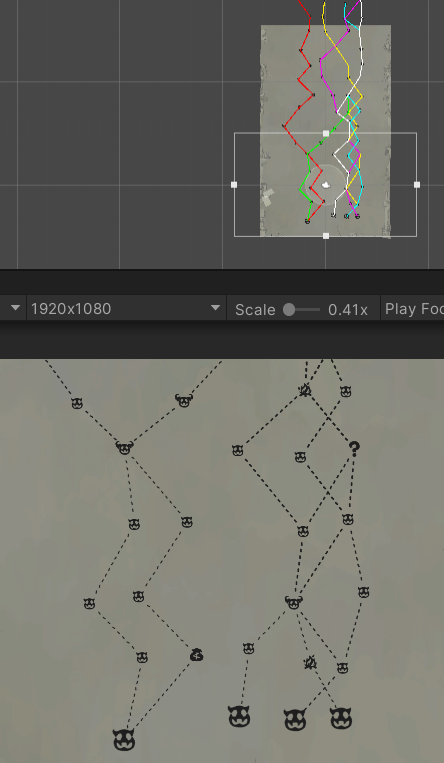
이번엔 슬레이 더 스파이어의 맵 생성 방식과 유사하게
랜덤 맵 생성을 해보도록 하겠다
이 맵의 특징이 있다면 7x15 정도 사이즈의 그리드를 만들어
일정한 규칙으로 상황에 맞는 오브젝트를 생성하는것이지만
위 사진처럼 랜덤한 배열은 약간의 값 조절로 가능하다
using System.Collections.Generic;
using UnityEngine;

[System.Serializable]
public class Node
{
    public int x;
    public int y;
    public Vector2 position;

    public List<Node> nextNodes = new List<Node>();

    public Node(int x, int y, Vector2 position)
    {
        this.x = x;
        this.y = y;
        this.position = position;
    }
}

public class MapGenerator : MonoBehaviour
{
    [Header("맵 기본 설정")]
    public int mapWidth = 7;
    public int mapHeight = 15;
    public float spacingX = 2.0f;
    public float spacingY = 2.5f;
    public float randomOffset = 0.5f;

    [Header("노드 개수 설정")]
    public int minNodesPerFloor = 3;
    public int maxNodesPerFloor = 5;

    public List<List<Node>> nodes = new List<List<Node>>();

    void Start()
    {
        GenerateGrid();
        ConnectNodes();
    }

    void GenerateGrid()
    {
        nodes.Clear();

        for (int y = 0; y < mapHeight; y++)
        {
            List<Node> currentFloorNodes = new List<Node>();
            int nodeCount = Random.Range(minNodesPerFloor, maxNodesPerFloor + 1);

            List<int> availableXPositions = new List<int>();
            for (int i = 0; i < mapWidth; i++) availableXPositions.Add(i);

            for (int i = 0; i < nodeCount; i++)
            {
                int randomIndex = Random.Range(0, availableXPositions.Count);
                int selectedX = availableXPositions[randomIndex];
                availableXPositions.RemoveAt(randomIndex);

                float posX = (selectedX - mapWidth / 2f) * spacingX;
                float posY = y * spacingY;

                float offsetX = Random.Range(-randomOffset, randomOffset);
                float offsetY = Random.Range(-randomOffset, randomOffset);

                Vector2 finalPosition = new Vector2(posX + offsetX, posY + offsetY);

                Node newNode = new Node(selectedX, y, finalPosition);
                currentFloorNodes.Add(newNode);
            }

            currentFloorNodes.Sort((a, b) => a.x.CompareTo(b.x));
            nodes.Add(currentFloorNodes);
        }
    }
    void ConnectNodes()
    {
        for (int y = 0; y < mapHeight - 1; y++)
        {
            List<Node> currentFloor = nodes[y];
            List<Node> nextFloor = nodes[y + 1];

            foreach (Node currNode in currentFloor)
            {
                List<Node> candidateNodes = nextFloor.FindAll(n => Mathf.Abs(n.x - currNode.x) <= 2);

                if (candidateNodes.Count == 0)
                {
                    Node closest = nextFloor[0];
                    float minDx = Mathf.Abs(closest.x - currNode.x);
                    foreach (Node n in nextFloor)
                    {
                        float dx = Mathf.Abs(n.x - currNode.x);
                        if (dx < minDx)
                        {
                            closest = n;
                            minDx = dx;
                        }
                    }
                    candidateNodes.Add(closest);
                }

                int pathsCount = Random.Range(1, 3);
                for (int i = 0; i < pathsCount; i++)
                {
                    Node target = candidateNodes[Random.Range(0, candidateNodes.Count)];
                    if (!currNode.nextNodes.Contains(target))
                    {
                        currNode.nextNodes.Add(target);
                    }
                }
            }

            foreach (Node nextNode in nextFloor)
            {
                bool hasIncoming = false;
                foreach (Node currNode in currentFloor)
                {
                    if (currNode.nextNodes.Contains(nextNode))
                    {
                        hasIncoming = true;
                        break;
                    }
                }

                if (!hasIncoming)
                {
                    Node closestNode = currentFloor[0];
                    float minDx = Mathf.Abs(nextNode.x - closestNode.x);

                    foreach (Node currNode in currentFloor)
                    {
                        float dx = Mathf.Abs(nextNode.x - currNode.x);
                        if (dx < minDx)
                        {
                            closestNode = currNode;
                            minDx = dx;
                        }
                    }

                    if (!closestNode.nextNodes.Contains(nextNode))
                    {
                        closestNode.nextNodes.Add(nextNode);
                    }
                }
            }
        }
    }

    void OnDrawGizmos()
    {
        if (nodes == null || nodes.Count == 0) return;

        foreach (var floor in nodes)
        {
            foreach (var node in floor)
            {
                Gizmos.color = Color.white;
                Gizmos.DrawSphere(node.position, 0.2f);

                Gizmos.color = Color.cyan; // 선 색상 (하늘색)
                foreach (var nextNode in node.nextNodes)
                {
                    Gizmos.DrawLine(node.position, nextNode.position);
                }
            }
        }
    }
}

그리드 만드는 메서드, 선을 잇는 메서드, 그리고 이것들을 기즈모로 눈으로 볼 수 있도록 해주었다
도트 연습 16일차
오늘은 개발중인 게임에 넣기 위한 아이콘들을 가볍게 그려주었다
sangeun00.tistory.com
그리고 임시로 만든 도트 그림으로 아이콘을 만든뒤
public enum NodeType
{
    Monster,
    Elite,
    Rest,
    Event,
    Merchant,
    Treasure,
    Boss
}


        foreach (var floor in nodes)
        {
            foreach (var node in floor)
            {
                GameObject newNodeObj = Instantiate(nodePrefab, node.position, Quaternion.identity);
                newNodeObj.name = $"Node_Floor{node.y}_{node.type}"; // 하이어라키 창에서 보기 편하게 이름 변경

                SpriteRenderer sr = newNodeObj.GetComponent<SpriteRenderer>();

                if (sr != null)
                {
                    switch (node.type)
                    {
                        case NodeType.Monster:  sr.sprite = Normal_EnemyImage; break;
                        case NodeType.Elite:    sr.sprite = Elite_EnemyImage; break;
                        case NodeType.Rest:     sr.sprite = RestImage; break;
                        case NodeType.Event:    sr.sprite = EventImage; break;
                        case NodeType.Merchant: sr.sprite = ShopImage; break;
                        case NodeType.Treasure: sr.sprite = TreasureImage; break;
                        case NodeType.Boss:     sr.sprite = Boss_EnemyImage; break;
                    }
                }
            }
        }
    }
이렇게 enum으로 다양한 상황별 오브젝트를 만들고
이미지를 알맞게 넣어주면 된다
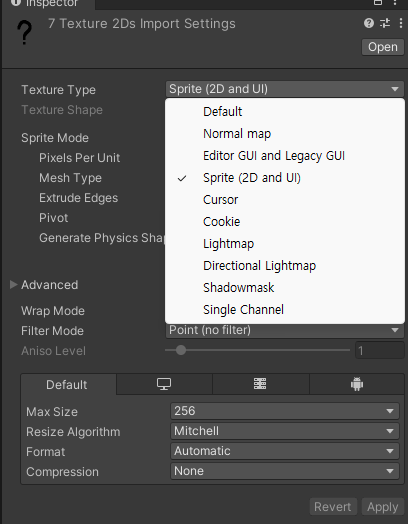
참고로 3d 툴은 이미지 가녀와도 텍스쳐 타입이 디폴트값으로 되어있으니
꼭 스프라이트로 고쳐줄것...
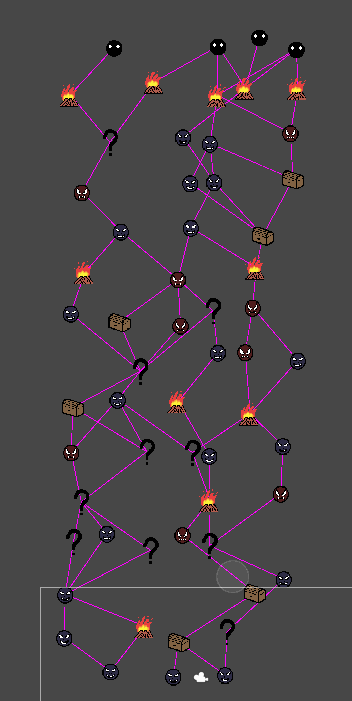
오... 꽤나 그럴싸하게 만들어진것을 볼 수 있다
여기서 중요한건
1. 첫번째는 무조건 노멀적으로 시작할것
2. 마지막은 무조건 보스로 끝날것
3. 보스 직전은 무조건 한번 쉴 수 있게 해줄것
이 3가지 규칙은 무조건 지켜져야 한다
이제 조금 더 다듬어보도록 하자
using UnityEngine;

public class CameraController : MonoBehaviour
{
    [Header("카메라 이동 설정")]
    public float minY = 0f;
    public float maxY = 35f;

    private Vector3 dragOrigin;
    private Camera cam;

    void Start()
    {
        cam = GetComponent<Camera>();
    }

    void LateUpdate()
    {
        PanCamera();
    }

    void PanCamera()
    {
        if (Input.GetMouseButtonDown(0))
        {
            dragOrigin = cam.ScreenToWorldPoint(Input.mousePosition);
            return;
        }

        if (Input.GetMouseButton(0))
        {
            MoveCamera(Input.mousePosition);
        }

        // 모바일 기기 터치 처리 (손가락 1개만 확실하게 인식하도록 방어)
        if (Input.touchCount == 1)
        {
            Touch touch = Input.GetTouch(0);

            if (touch.phase == TouchPhase.Began)
            {
                dragOrigin = cam.ScreenToWorldPoint(touch.position);
            }
            else if (touch.phase == TouchPhase.Moved)
            {
                MoveCamera(touch.position);
            }
        }
    }

    void MoveCamera(Vector3 inputPosition)
    {
        Vector3 difference = dragOrigin - cam.ScreenToWorldPoint(inputPosition);
        Vector3 move = new Vector3(0, difference.y, 0);

        cam.transform.position += move;

        float clampedY = Mathf.Clamp(cam.transform.position.y, minY, maxY);
        cam.transform.position = new Vector3(cam.transform.position.x, clampedY, cam.transform.position.z);
    }
}
마우스 드래그(모바일에서는 터치 드래그)로 화면을 Y축으로 위아래 이동하도록 해주었다
여기서 Update 대신 LateUpdate를 사용하면 화면 떨림이 방지 된다
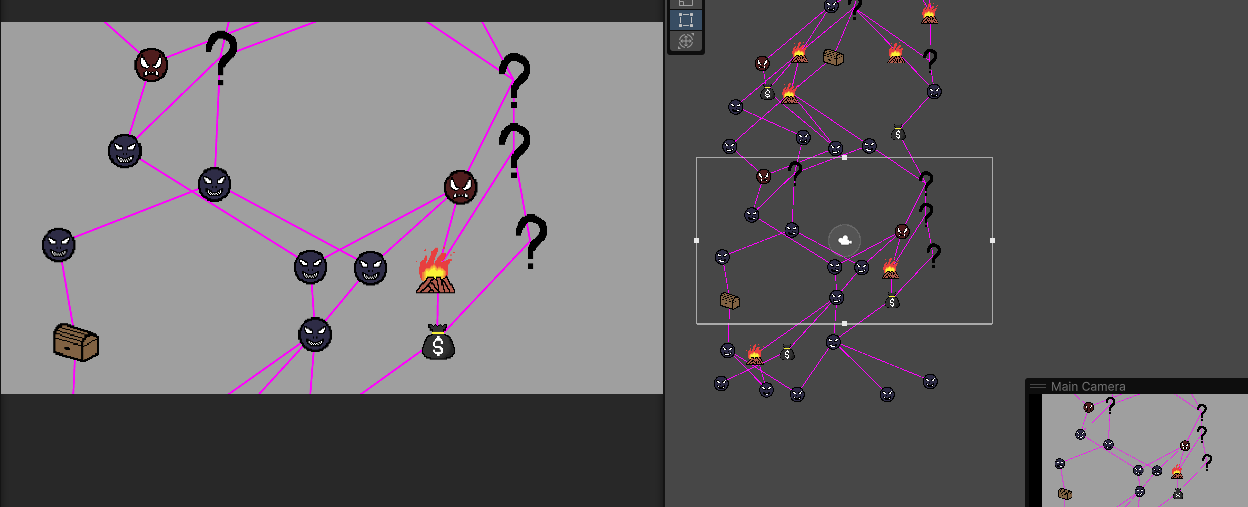
이제 티스토리에 영상을 첨부못해서....
그냥 사진으로 붙이겠다
728x90
반응형
'유니티 > 유니티 공부' 카테고리의 다른 글
| 타일맵, 시네머신 (3) | 2026.05.20 |
|---|---|
| #5 맵 생성 보완(점선 메터리얼, 강조 효과) (0) | 2026.02.26 |
| #3 스테이지 이동, 스테이지 무한생성 구현, 점프 횟수 제한(바닥 인식) (0) | 2026.02.16 |
| #2 플레이어 타격, 게임오버 기본 구현 (1) | 2026.02.14 |
| 타일맵 사용법 (0) | 2026.01.30 |